AgroNode v3 Setup Guide
This guide applies to the AgroNode v3 only; it walks through the full setup flow, from wiring the device to claiming it in the panel.
Requirements
- Your AgroNode v3 device and its adapter
- An Android phone or a Bluetooth-capable computer
- The Chrome browser — Bluetooth setup is only supported in Chrome
- The device placed near your phone or computer during setup
- Internet connectivity — Wi-Fi or cellular depending on your device variant; the setup wizard detects the connection type automatically
Preparing the device
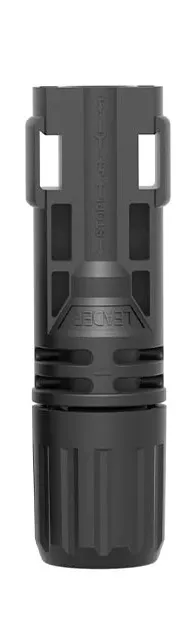
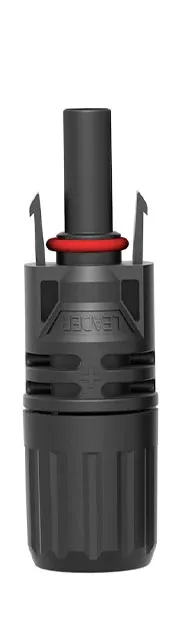
- Plug the MC4 female connector on the adapter into the male connector on the device.
- Plug the MC4 male connector on the adapter into the female connector on the device.
-
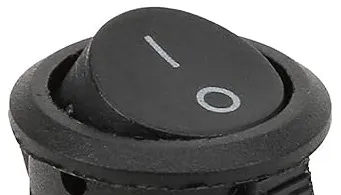
Set the 1-0 switch on the device to 1.
-
Wait about a minute; the device powers on and enters pairing mode (LED blinks blue).
Panel account
You need a panel account before setup; if you don’t have one, create it in these steps.
-
Open Chrome on your phone or Bluetooth-capable computer and place your AgroNode v3 nearby.
-
Open tohum.se and click the Open Panel button in the top-right corner.

-
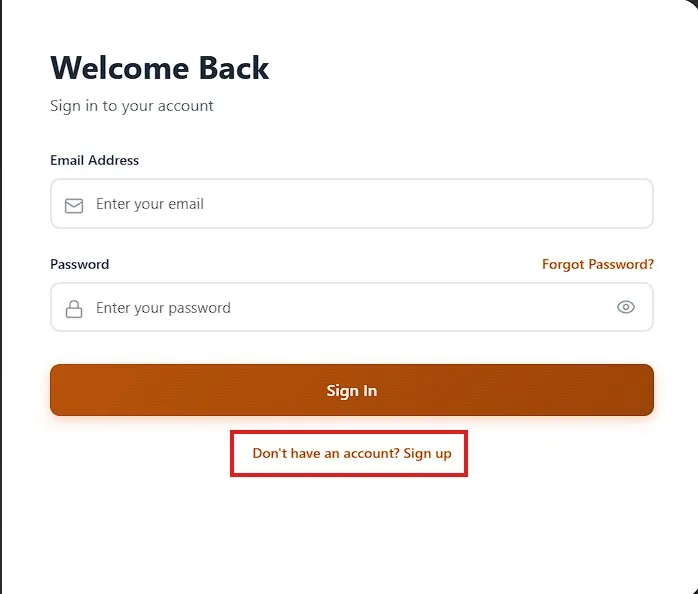
On the sign-in screen, click the sign up link.
-
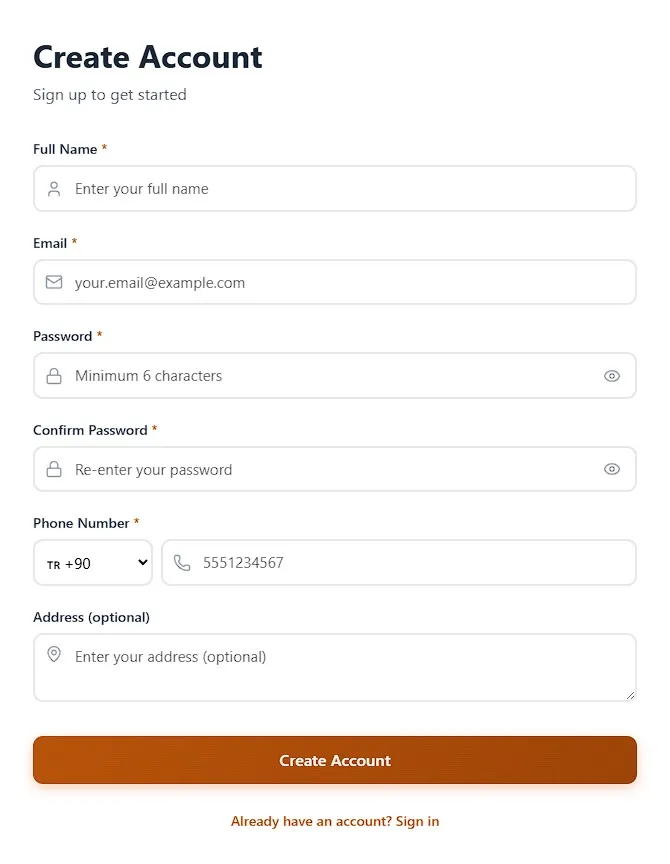
Fill in the form to create your account.
-
Sign in with the account you created.
Adding the device
-
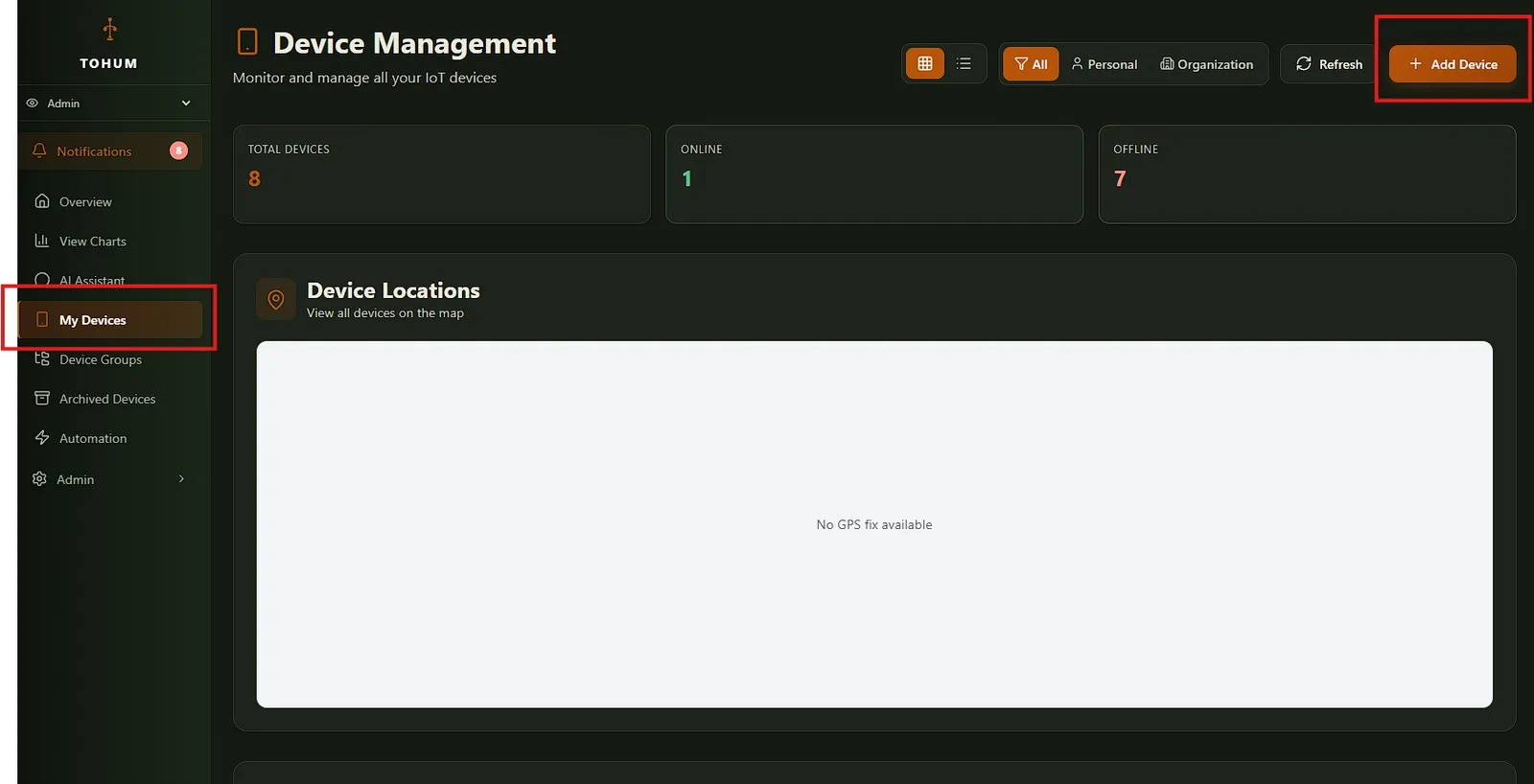
Click My Devices in the left menu, then the Add Device button in the top-right corner of the page.
-
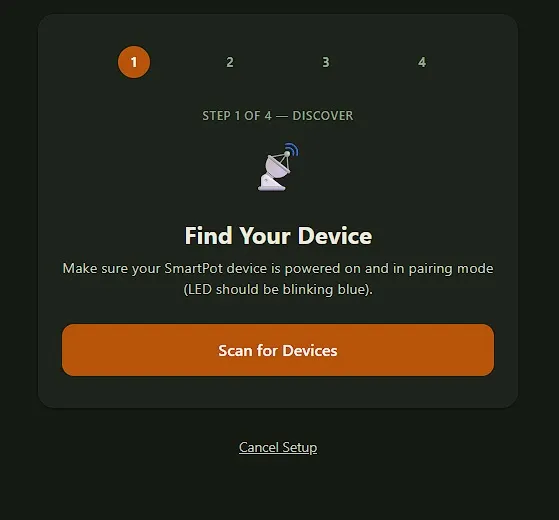
In the setup wizard, click Scan for Devices.
-
Chrome opens a Bluetooth pairing window in the top-left corner. When the scan finishes and your device’s serial number appears in the list (e.g.
AN-XXXXXXXX), select it and click Pair.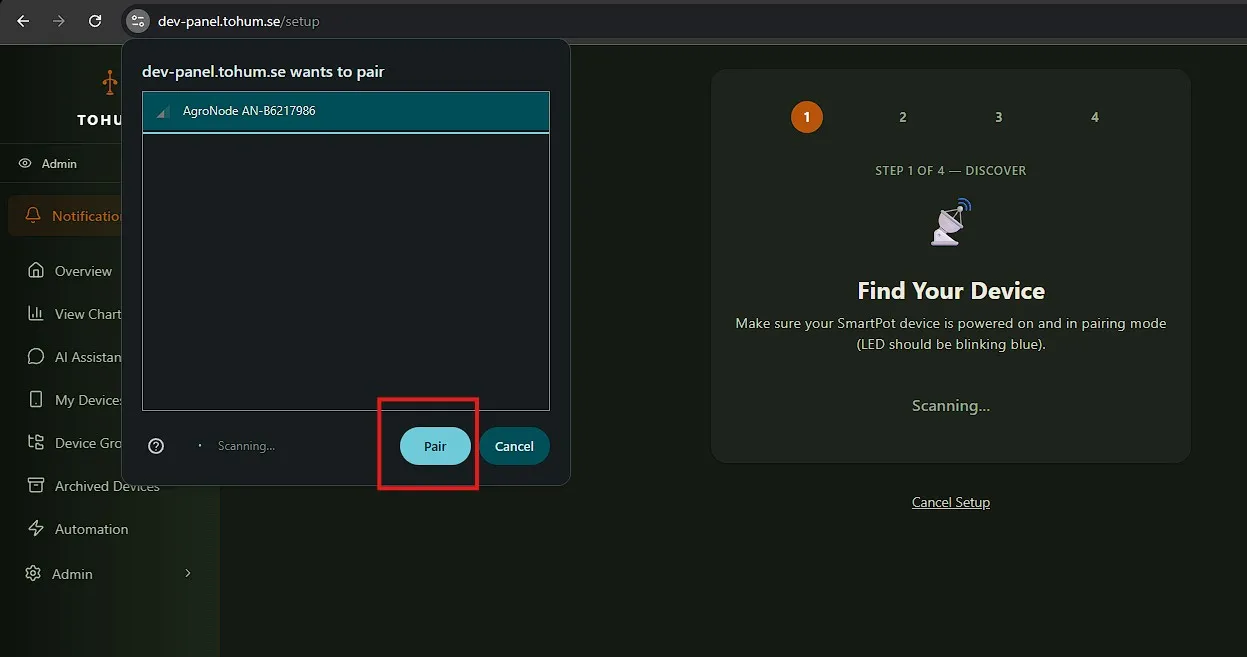
-
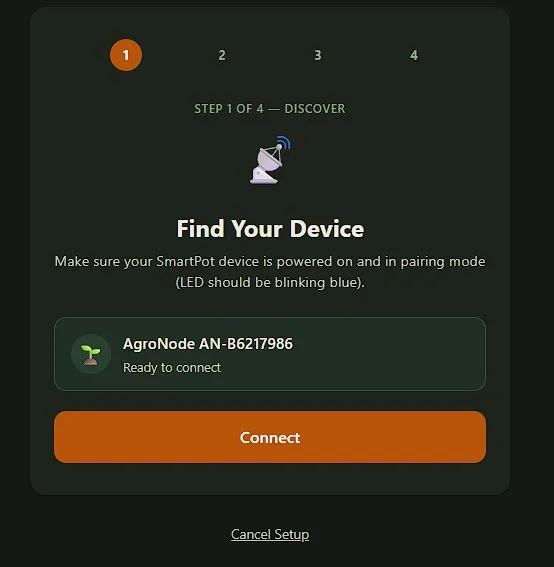
Once paired, the device appears as “Ready to connect”; click Connect.
-
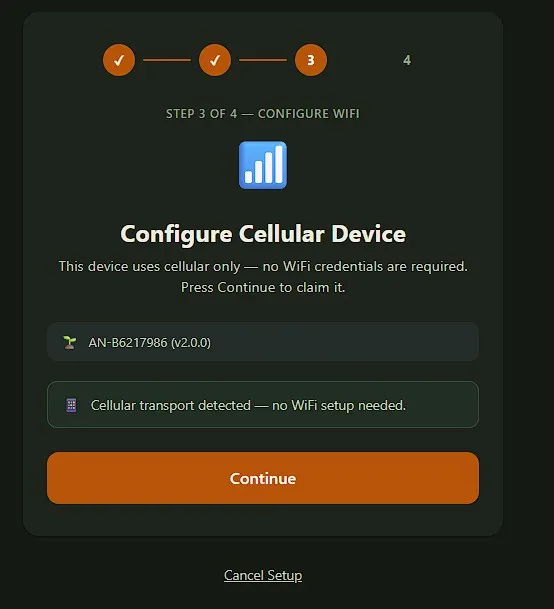
When the device’s connection type is detected, click Continue. Cellular devices don’t ask for Wi-Fi credentials.
-
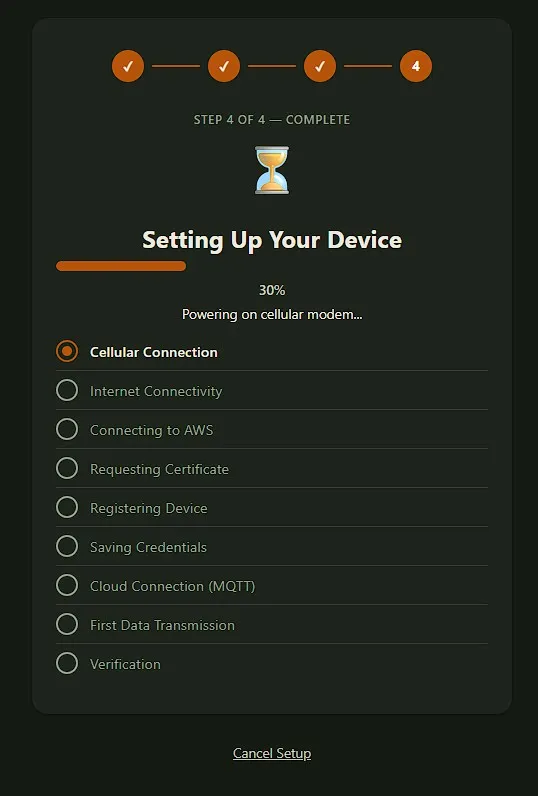
Wait while the setup steps complete; when finished, you are redirected to the Devices page automatically.
Final checks
Once setup is complete:
-
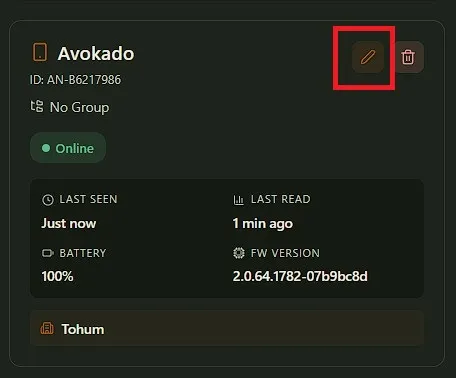
On the Devices page, confirm the device card shows the green Online badge.
-
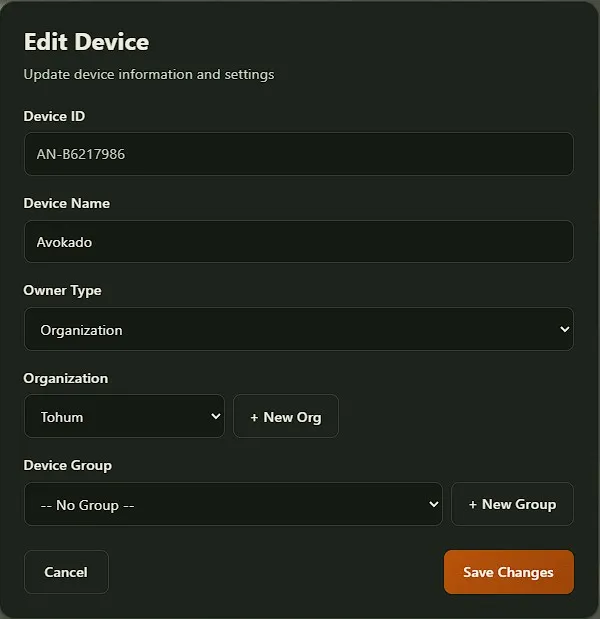
Click the pencil icon in the card’s top-right corner to open Edit Device: you can change the name shown on the card and the device’s ownership (personal/organization).
-
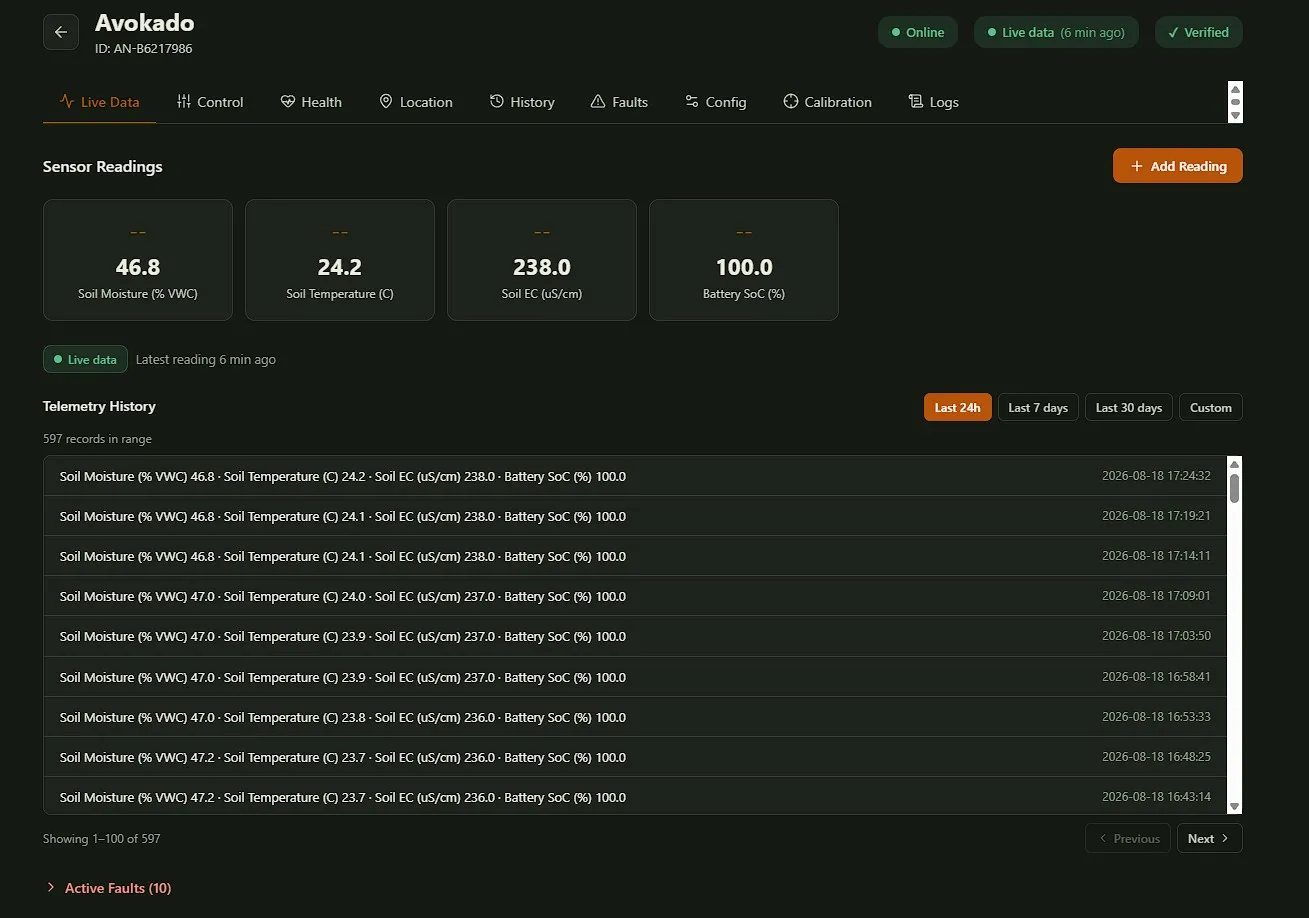
Click the device card to open its detail page; the Live Data tab shows the most recent readings the device has sent.
Troubleshooting
- If something goes wrong during setup, first click Try again.
- If the problem persists: set the device’s power switch to 0 and wait 1 minute, then set it back to 1 and wait 10 seconds. After that, repeat the steps starting from the Adding the device section above.